Photo video maker with music
- 4.4
- Rating
- 10.00M
- Installs
- Free
- Price

 Analysis by App-foxy
When I want to turn a group of phone photos into something more watchable than a plain slideshow, Photo video maker with music is the kind of app I reach for first. It is a free video-making app for Android, built around photos, music, effects, and frames rather than complicated timeline editing. That focus makes it approachable, especially when the goal is to finish a small project quickly instead of learning a professional editor.
I tested it with the mindset of someone who needs a usable result: collect images, arrange them, add a soundtrack, give the video some personality, and prepare it for sharing. My overall impression is positive, but specific. This is not the app I would choose for a multi-layer production, detailed audio mixing, or precise motion graphics. It is much better suited to personal montages, birthday greetings, travel recaps, school projects, family memories, and short social posts.
The app comes from photo & video editor apps and sits in the video players and editors category. It is free to install, rated for Everyone, and works on Android 6.0 or later. Its current version is 4.9.0, and its popularity is easy to understand: it has passed 10 million installs and holds a 4.4 average from roughly 785 thousand ratings. Those figures do not automatically make it perfect, but they suggest that the simple photo-to-video workflow has found a large audience.
You May Also Like

 Blood Strike: 2.5 Anniversary
Blood Strike’s Loadouts Turn Every Drop Into a Tactical Gamble
A close look at Blood Strike’s custom loadouts: how fast access to signature weapons reshapes its battle royale rhythm, rewards preparation, and narrows the gap between fights.

 Pandora - Music & Podcasts
Pandora’s Music Is Easy to Start, but Harder to Recover
Pandora’s strength is its low-effort path from a seed to a station. Its weak spot is how much confidence it asks you to place in connection, setup, and quiet recovery.

 8 Ball Pool
 Is Built on Rivalries, Rematches, and Routine
A close look at the rivalries, rematches, shared routines, and unanswered safety questions that turn a quick pool match into a persistent mobile community.

 Samsung Music
’s Quiet Strength Is Playing What You Already Own
Its reach comes less from spectacle than from dependable access to a personal library. That simplicity is both the app’s strongest retention engine and its ceiling.

 AccuWeather: Weather Radar
AccuWeather Review: A Quick, Clear Forecast for Everyday Decisions
For everyday plans, the best forecast is the one you can understand quickly. AccuWeather makes rain timing, radar, and local conditions easy to act on, with a few trade-offs.

 Hill Climb Racing
Why Hill Climb Racing Still Turns Crashes Into One More Run
A tiny car, a bumpy hill and one more upgrade: Hill Climb Racing keeps resurfacing because its simple chaos makes every near-miss feel personal.
More From Our News Desk



Starting with an idea instead of an empty timeline
The strongest part of this app is the low-pressure starting point. A conventional video editor can make a simple project feel like a technical task, with tracks, trimming tools, keyframes, and settings competing for attention. Here, the basic creative question is easier: which photos tell the story, and what mood should the music create?
That makes it useful for a realistic everyday situation. Imagine returning from a weekend trip with dozens of pictures and wanting to send a two-minute recap to friends. I would first separate the images into a clear sequence: arrival, places visited, food, people, and a final view. The app’s photo-based approach encourages that kind of visual planning before effects start taking over.
I also like that the concept works for people who do not think of themselves as video editors. A parent can assemble a school-year memory, a small business owner can build a visual announcement from product photos, and a student can turn research images into a presentation-style clip. The result depends more on selection and order than on advanced editing knowledge.
There is a useful creative discipline hidden in that simplicity: fewer photos often create a stronger video. If every image from a camera roll is included, the finished piece can feel slow even when the app is functioning correctly. I recommend choosing the essential images first, then adding only a few supporting shots. This gives the music and transitions room to breathe.
The frames and effects are helpful when they support a theme. A restrained frame can make a family montage feel finished, while a more energetic treatment may suit a celebration. I would avoid applying a different visual style to every image, though. Consistency matters more than novelty, and too many decorative changes can make a short video look accidental rather than designed.
Choosing photos that survive the final format
One practical issue is image shape. Phone cameras often produce tall photos, while many video destinations favor wider compositions. Before building the project, I check whether important faces, signs, or objects sit near the edges. A photo that looks fine in the gallery may feel cramped once it is placed into a video frame.
This is one of the app’s trade-offs. Its approachable workflow is excellent for getting started, but it does not replace the careful framing decisions of a dedicated photo editor. I prepare images beforehand when they need cropping, brightness correction, or removal of a distracting background. That small amount of preparation usually improves the result more than adding another effect inside the video.
For a photo story, sequence is just as important as quality. I usually open with a clear establishing image, place the most personal or informative photos in the middle, and save the strongest image for the ending. This approach works particularly well with travel and event videos because the viewer can follow a beginning, middle, and close rather than watching a random collection.
Building the video without losing the story
Once the photos are selected, the app’s workflow becomes a practical exercise in rhythm. I think of each image as a beat. If the music is calm, longer viewing time and gentle transitions make sense. If the track is lively, a faster sequence can keep the video from feeling static. The app gives the project a musical identity, but the editor still needs to make the timing feel intentional.
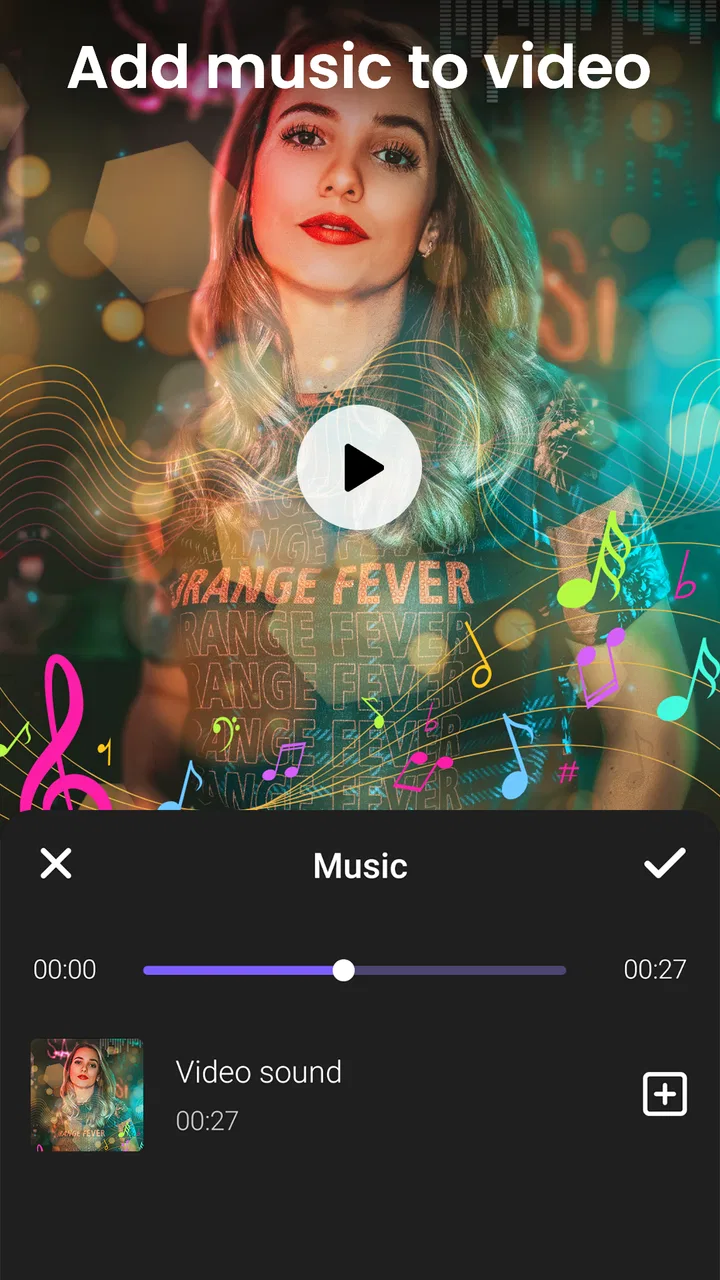
Music is one of the main reasons to use this particular style of editor. A soundtrack can turn ordinary snapshots into a coherent memory, but it can also overpower them. I listen to the chosen track before finalizing the sequence and look for natural points where the images can change. Even without building a complex audio arrangement, matching a visual change to a noticeable musical moment makes the result feel more polished.
I would not treat music as an afterthought. For a birthday video, a warm and familiar mood may matter more than dramatic transitions. For a product montage, a cleaner and less emotional track may keep attention on the images. If the app offers a broad selection of music or allows personal choices, the important decision remains the same: choose sound that supports the purpose rather than simply filling silence.
Effects and frames are best used as accents. I might apply a consistent look to a short sequence or use a frame to create a visual boundary around images that do not share the same proportions. I would be cautious with heavy effects on photos that already contain strong colors or busy backgrounds. In those cases, decoration competes with the subject.
A useful workflow is to make a plain version first. I arrange the photos, add music, and watch the draft without trying to make it flashy. Only after the pacing feels right do I add frames or effects. This separates storytelling problems from styling problems and prevents a beautiful transition from hiding an awkward sequence.
Small decisions that make the result feel deliberate
One of my favorite practical habits is grouping similar images rather than alternating randomly between unrelated scenes. Three pictures from the same moment can work as a mini-sequence, followed by a change of location or subject. That creates visual continuity and reduces the impression that the app simply shuffled a camera roll.
I also remove near-duplicates. Two photos with almost the same pose rarely add much, and a repeated image can make a short montage feel longer than it is. When I have several strong versions, I choose the one with the clearest expression or best composition, not necessarily the sharpest technical image.
Another worthwhile tip is to preview the video with sound and without sound. With music, transitions may feel energetic and complete. Without it, any visual weakness becomes more obvious. This test helps me decide whether the images communicate enough on their own, which is important because some viewers watch social videos silently.
The app is also more appropriate for a finished visual message than for ongoing footage management. If I am editing a long interview, arranging multiple camera angles, or building a detailed tutorial, I would move to a full timeline editor. This tool’s strength is turning prepared still images into a compact presentation, not managing a large production.
Iterating when the first draft is not quite right
The first export is rarely the best one. My usual revision pass focuses on three questions: does the opening explain what I am seeing, does the middle drag, and does the ending feel intentional? These questions are more useful than judging every transition separately because they keep attention on the viewer’s experience.
If the video feels slow, I first remove photos rather than immediately adding faster effects. A shorter sequence often fixes the problem cleanly. If it feels abrupt, I try a more logical order or use fewer changes in visual style. When the music seems wrong, changing the track can improve the entire project more effectively than adjusting every image.
This is where the app’s simplicity has both an advantage and a limitation. It makes experimentation approachable, so I can create a second version without feeling that I am rebuilding a professional edit from scratch. At the same time, users who want exact control over every clip may find the workflow restrictive compared with advanced editors that expose detailed timing and layered tracks.
I would also watch for visual overload. Frames, effects, music, and a large number of photos can all be individually appealing, yet together they may distract from the subject. For a family video, the people should remain the focus. For a small business video, the product or message should remain readable. If an effect is the first thing I notice, I usually tone it down.
One overlooked revision is checking the first and last few seconds. Viewers decide quickly whether to continue watching, so the opening image should be clear rather than merely decorative. The ending should not feel like the app ran out of material. A final portrait, destination view, product image, or simple closing message can give the montage a sense of completion.
Where this app fits among alternatives
Compared with a standard gallery slideshow, this app offers a more expressive result because music, effects, and frames can give the sequence a recognizable mood. Compared with a full mobile video editor, it is easier to approach but less suitable for precise production work. That middle position is its real identity.
I would choose it over a complex editor when the source material is mostly still images and the deadline is short. I would choose a more advanced alternative when I need multiple video clips, voice-over control, exact cuts, captions with detailed positioning, or a carefully mixed soundtrack. The right choice depends less on the app’s popularity than on whether the project is photo-led.
It is also worth considering the payment model before starting a larger workflow. The app is free, but in-app purchases range from $2.49 to $41.99 per item. I would begin with a small project and check which creative tools are available in the free experience before promising a particular style to a client or group. That avoids designing around an option that may require a purchase later.
Preparing the finished video for handoff
Export is the point where a creative idea becomes something other people can actually watch. I preview the complete video before sharing it, paying attention to the first image, the final transition, the soundtrack, and whether any important subject is hidden by the chosen frame or layout. A project can look fine while editing and still reveal awkward moments when watched from beginning to end.
For a personal message, I would send the finished video directly after checking that the file plays correctly on my phone. For a social post, I would watch it once with the device held the way most viewers will see it. For a school or work handoff, I would keep the visual style restrained and make sure the sequence explains itself without a spoken introduction.
The app is particularly convenient when the delivery format is informal: a family group chat, a birthday greeting, a travel recap, or a quick visual announcement. It is less convincing as the only tool in a professional publishing workflow where exact dimensions, compression choices, subtitles, branding rules, or revision tracking are essential. In those cases, I would use this app for the first creative draft and move the material elsewhere if the final requirements become strict.
Before handing over a project, I recommend keeping the original photos in a separate album. The video is a presentation, not a replacement for the source material. If a relative later asks for one image, or if I want to create a second version with a different song, having the originals organized saves time.
There is also a useful distinction between a video made for private viewing and one made for a broad audience. Private projects can be more personal and image-heavy. Public projects should communicate quickly, avoid unnecessary repetition, and remain understandable even when watched without sound. The same app can serve both purposes, but the editing decisions should not be identical.
Who should use it and who should look elsewhere
I recommend this app to anyone who wants a friendly way to make a photo montage with music without committing to a professional editing course. It is a good match for Android users on version 6.0 or newer who value speed, visual templates, and a straightforward path from photos to a shareable video. The Everyone age rating also makes its basic audience broad, although adults should still supervise how children use any tool involving personal images and sharing.
It is especially useful for people who have a clear visual idea but do not want to manage a complicated timeline. A teacher preparing a visual recap, a family member creating an anniversary montage, or a small seller presenting a set of handmade items can get meaningful value from the focused workflow.
I would skip it as a primary editor if your projects depend on long video recordings, detailed narration, synchronized dialogue, advanced color work, or exact control over individual audio and visual layers. I would also look elsewhere if you need a highly controlled commercial workflow where every export setting and revision must be repeatable.
The developer, photo & video editor apps, has positioned the product around accessible creation rather than specialist production. That choice is clear in the experience: the app helps me finish a modest project quickly, but it does not try to become a complete studio. Its best quality is focus, not depth.
My creator verdict after using the full workflow
After taking a project from photo selection through arrangement, styling, revision, and handoff, I see Photo video maker with music as a practical tool for a specific job. It helps transform still images into a more engaging story, and it does so without making the user confront the complexity found in advanced editors.
The most successful results come from thoughtful preparation: choose fewer photos, organize them into a story, select music that matches the mood, and use effects consistently. Those choices matter more than filling every available moment with decoration. The app gives me the ingredients, but good editing still depends on restraint.
Its free entry point makes it easy to try, while the optional purchases mean I would check the available tools before building a project around a particular effect or style. That is not a reason to dismiss it; it is simply part of deciding whether the app fits the budget and the intended finish.
For a quick birthday montage, trip recap, family memory, or photo-led announcement, I would recommend it to a friend. For a serious video production, I would recommend a more capable editor instead. In the right situation, Photo video maker with music is not trying to replace a professional suite; it is a convenient bridge between a folder of photos and a video people will actually enjoy watching.
FAQs for Photo video maker with music
01What is Photo Video Maker with Music and how does it work?
Photo Video Maker with Music is an app that allows users to create stunning video slideshows using their photos, set to music. Users can select photos from their gallery, choose or upload a soundtrack, and apply various editing effects like transitions, filters, and text. The app then compiles everything into a cohesive video, ready for sharing on social media or saving to your device.
02Is Photo Video Maker with Music free to use?
The app offers a free version with basic features, allowing users to create videos with limited options. However, for advanced features such as premium music tracks, additional filters, and ad-free experience, users may need to purchase a subscription or make in-app purchases. Check the app store for the latest pricing and subscription details.
03What types of music files can I use in my videos?
Users can choose from a library of royalty-free music provided within the app or upload their own music files. Supported formats typically include MP3, WAV, and AAC. Ensure that any music used complies with copyright laws and is properly licensed for your specific use case to avoid any legal issues.
04Can I share my videos directly from the app?
Yes, Photo Video Maker with Music offers seamless sharing options. Once your video is edited and finalized, you can directly upload it to popular social media platforms like Instagram, Facebook, and YouTube. You can also save the video to your device’s gallery for personal use or sharing via email and messaging apps.
05What editing features are available in Photo Video Maker with Music?
The app provides a variety of editing tools to enhance your video creation experience. Users can apply visual effects like transitions, filters, and overlays. Text and stickers can be added for personalization. The app also offers basic editing features such as trimming, cropping, and adjusting the video speed, allowing for a customized and professional-looking video.
Pros
- User-friendly interface for easy editing.
- Wide range of music options available.
- Supports multiple video formats.
- Quick export with high-quality results.
- Customizable templates for creative projects.
Cons
- Limited advanced editing tools.
- Ads can be intrusive during use.
- Some features require in-app purchases.
- Occasional lag on older devices.
- Limited music library without subscription.

Photo video maker with music
Gallery